
Getting Started with Your ShootCal WordPress Website
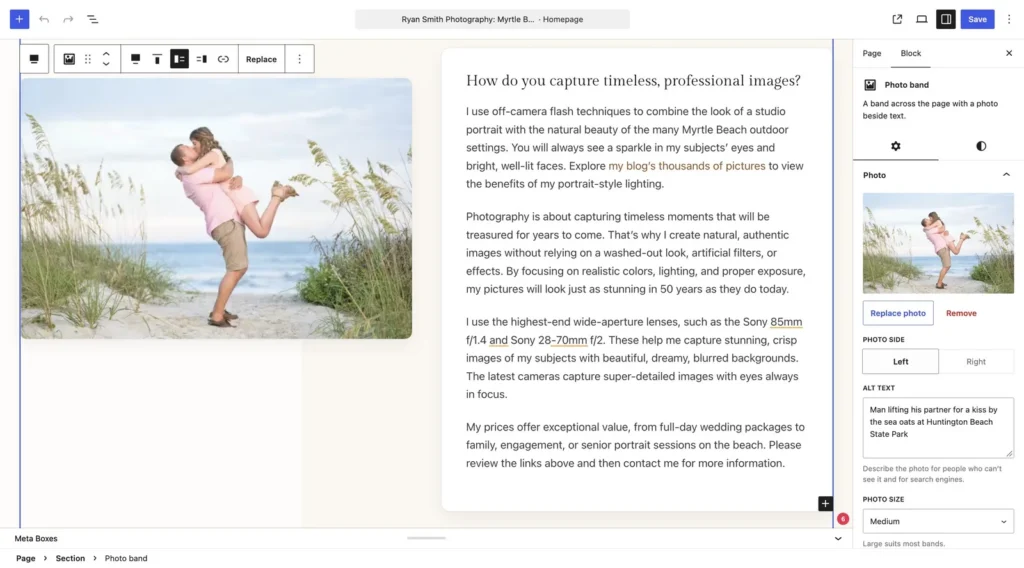
I wanted to share a quick introduction to editing your photography website and blog with WordPress in ShootCal. You can start with a ready-made design, replace the text and photos, and make the site feel like your business without having to build every page from scratch.
I use WordPress for my own photography website and blog. One of its biggest benefits is how much help is available. You can find tutorials for the block editor, learn a little at a time, and use the same familiar tools for your pages and blog posts.
Start from your ShootCal website overview
In ShootCal, open Websites → Overview. Choose Open WordPress to manage your site, or use Edit beside a page to go straight to it. You do not need a separate WordPress password when opening your website from ShootCal.
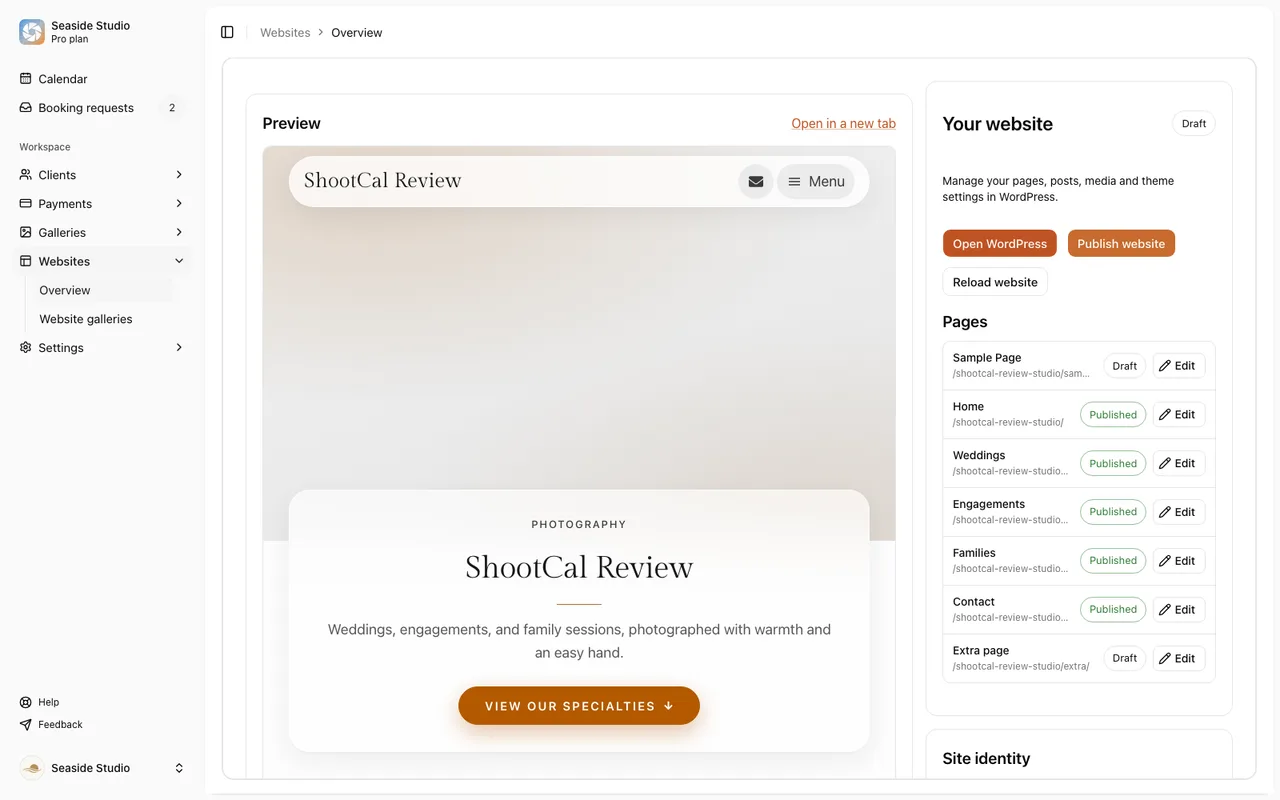
Start with your Home and Contact pages. Get the important information in place first: what you photograph, where you work, a small selection of your best pictures, and an easy way for someone to get in touch.
Get comfortable with the block editor
WordPress builds a page from blocks. A paragraph, heading, photograph, button, or group of content is a block you can select and change. You do not need to learn code to make ordinary edits.
- Click a paragraph or heading and replace the starter wording with your own. Write the way you would explain your business to a client.
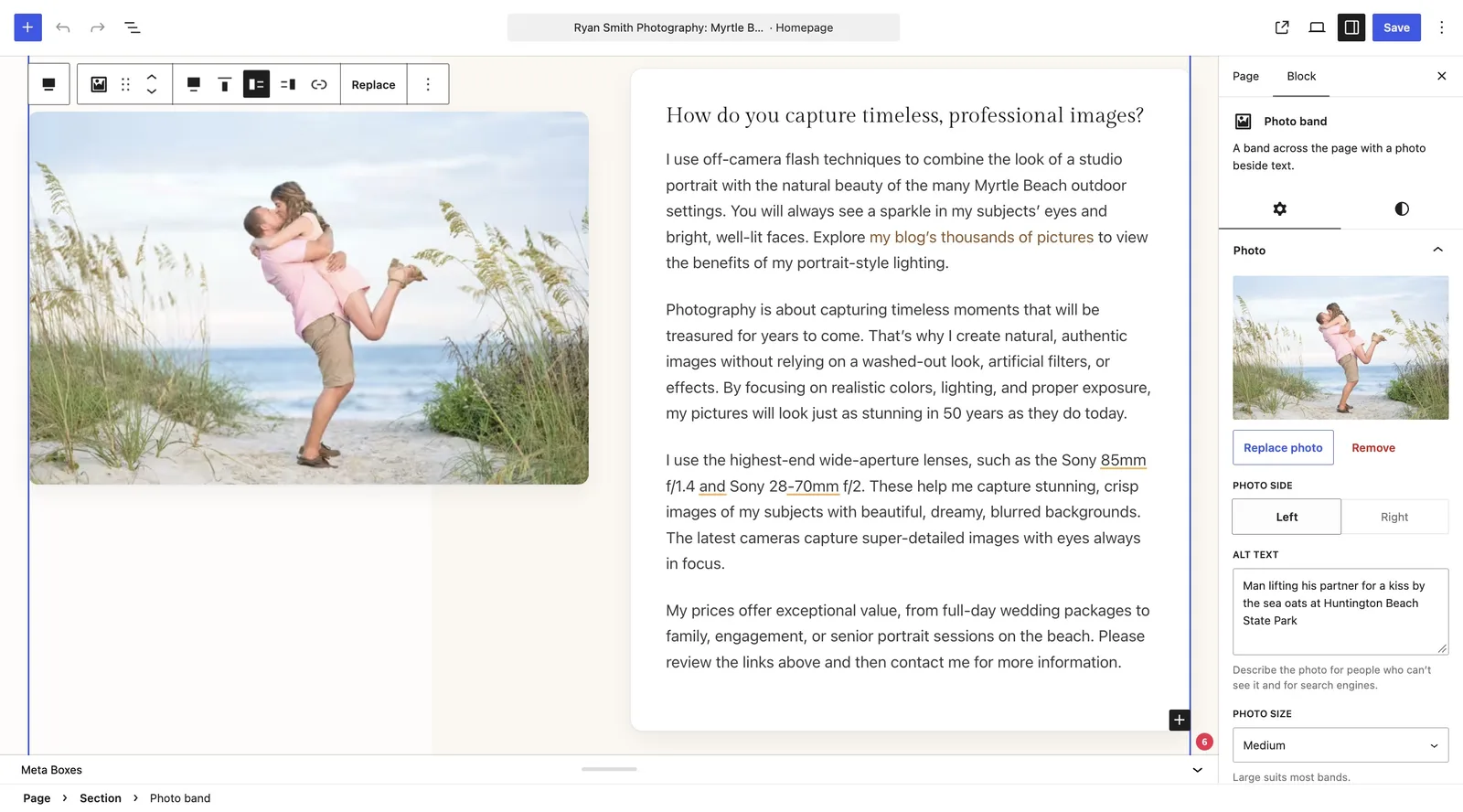
- Select a photo block and use its Replace or photo control to choose your image. Add useful alt text describing the picture.
- Use the + button to add content. Start with a few blocks and keep the page easy to read.
- Open List View to see how sections and blocks fit together. It is especially useful when you want to move a whole section instead of one paragraph.
- Select a block to see its settings in the sidebar. Those settings change the selected item; your site-wide look is managed separately.
Use the photography features already connected to ShootCal
The editor includes photography blocks for things such as your header and slideshow, photo bands, ShootCal galleries, gallery cards, availability, contact information, and Instagram. You can combine these with standard WordPress headings, paragraphs, images, and buttons.
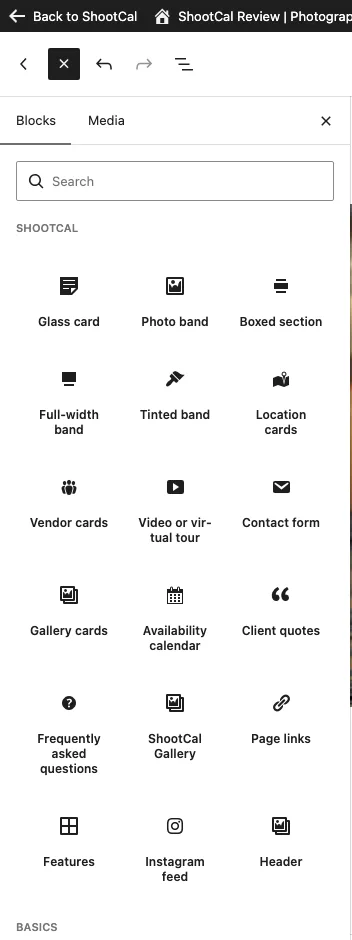
A ShootCal Gallery block can show photographs from your public Website galleries. You do not have to upload those gallery pictures again just to show them on a page. Use the WordPress Media Library for separate website images, such as photographs you add directly to a page or blog post.
The website Media Library has its own 1 GB allowance, separate from your gallery storage. So for sharing numerous images on your ShootCal website, use a ShootCal Gallery block. The photos use your ShootCal gallery storage instead of the WordPress Media Library allowance. Your gallery plan’s storage limits still apply. For client photo delivery, use your ShootCal galleries.
Choose a look, then make it yours
Use Appearance → Customize for your website’s overall design. Start with a look you like, then adjust your logo, fonts, and colors. Keep the styling consistent so the photographs and information are easy to follow.
For a new photography business, I would spend more time choosing strong pictures and writing a clear introduction than trying to fill every part of the site. A simple, finished homepage is a useful starting point.
Watch the official WordPress getting-started video
This lesson from Learn WordPress explains creating pages and posts with the block editor, adding content, using the sidebar and working with List View.
The general editing tips apply to ShootCal. The lesson also briefly shows WordPress’s Site Editor; for your ShootCal website’s overall design, use Appearance → Customize as described above. You can also watch the lesson on YouTube.
Start a photography blog when you are ready
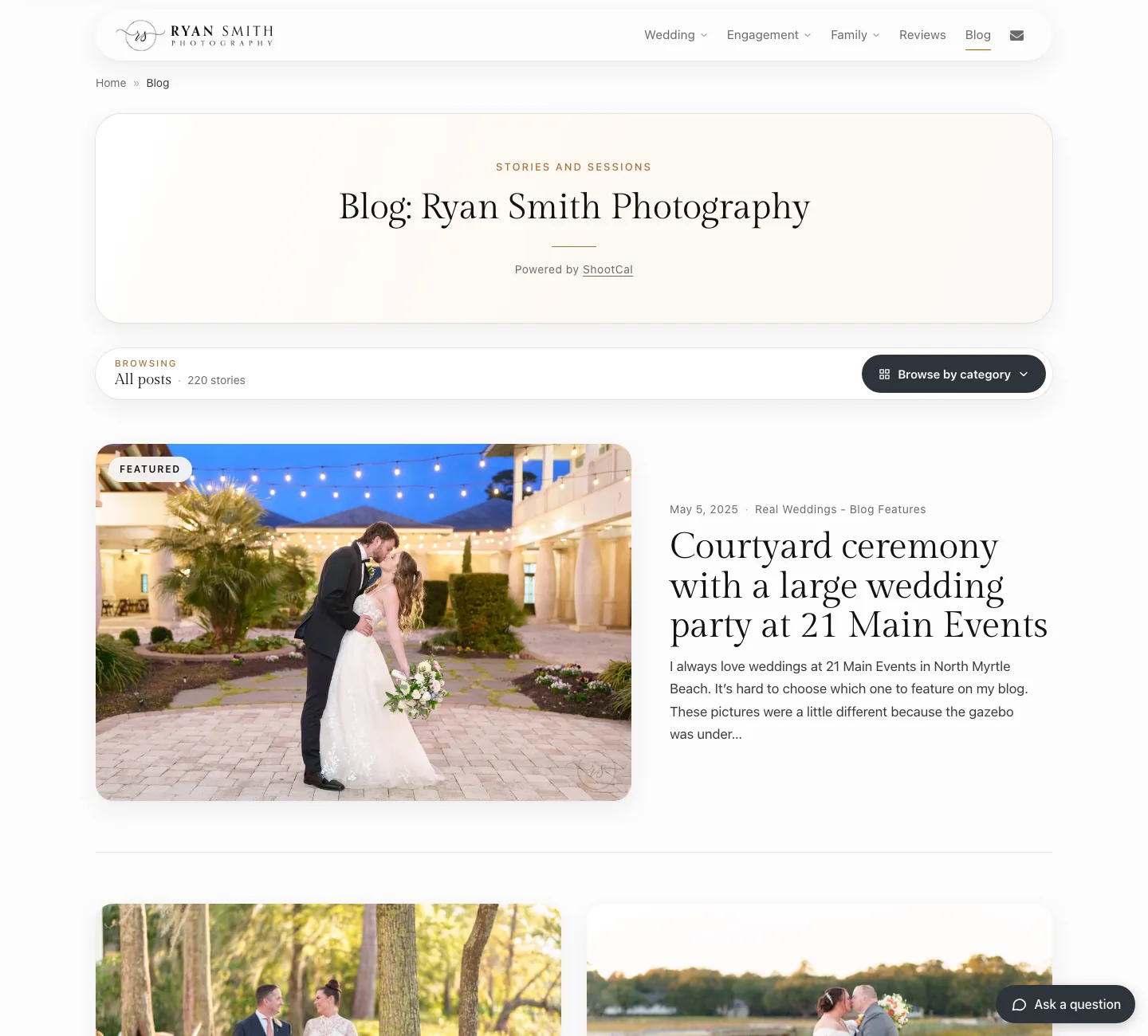
Pages are for information that stays in your navigation, such as Home, Weddings, or Contact. Posts are for articles and updates: a recent session, a favorite location, advice for clients, or something new in your business. A blog gives you room to explain more than a short social-media caption.
On a plan with blogging, open Posts → Add New. Add a clear title, write your story, and use Image or Gallery blocks for photographs. Save a draft while you are working, then preview it before publishing. You can also keep drafts for ideas you want to finish later.
Which plan do you need?
You can start with the free website and upgrade as your business grows. These are the regular monthly options for new accounts:
- Free — $0/month: Home and an optional Contact page. No WordPress blog.
- Basic — $5/month: The five standard website pages. No WordPress blog.
- Plus — $12/month: Five website pages and a starter blog with up to five published or scheduled posts. Drafts are unlimited.
- Pro — $25/month: Unlimited website pages and blog posts, custom domains, and removal of the ShootCal footer credit.
If you mainly want a simple place to introduce your business and receive inquiries, start with Free. Basic gives you the standard service pages. Plus is a way to try blogging, and Pro makes sense when you want to keep publishing regularly, add more pages, or use your domain.
Earlier accounts may have access or domain arrangements that are preserved. Check your account and the current plan guide for the details that apply to you. Gallery storage and video allowances also vary by plan.
Preview, save, and publish
- Preview the page at a phone size as well as on your computer. Check that the text is readable and your main links are easy to find.
- For your first launch, publish your Home page in WordPress, then use Publish website in ShootCal when the site is ready.
- Once your website is public, publishing a page or post change can update the live site immediately. Keep unfinished articles as drafts.
- If you need to return to an earlier version, look for WordPress Revisions where available. Save before leaving the editor.
ShootCal manages the hosting and updates for these websites. You edit your content with WordPress and the provided designs and blocks; installing arbitrary plugins or themes is not part of the hosted website plans.
For the full walkthrough, open the ShootCal website editing guide. To see the website options, visit ShootCal Websites.
Discover more from ShootCal
Subscribe to get the latest posts sent to your email.